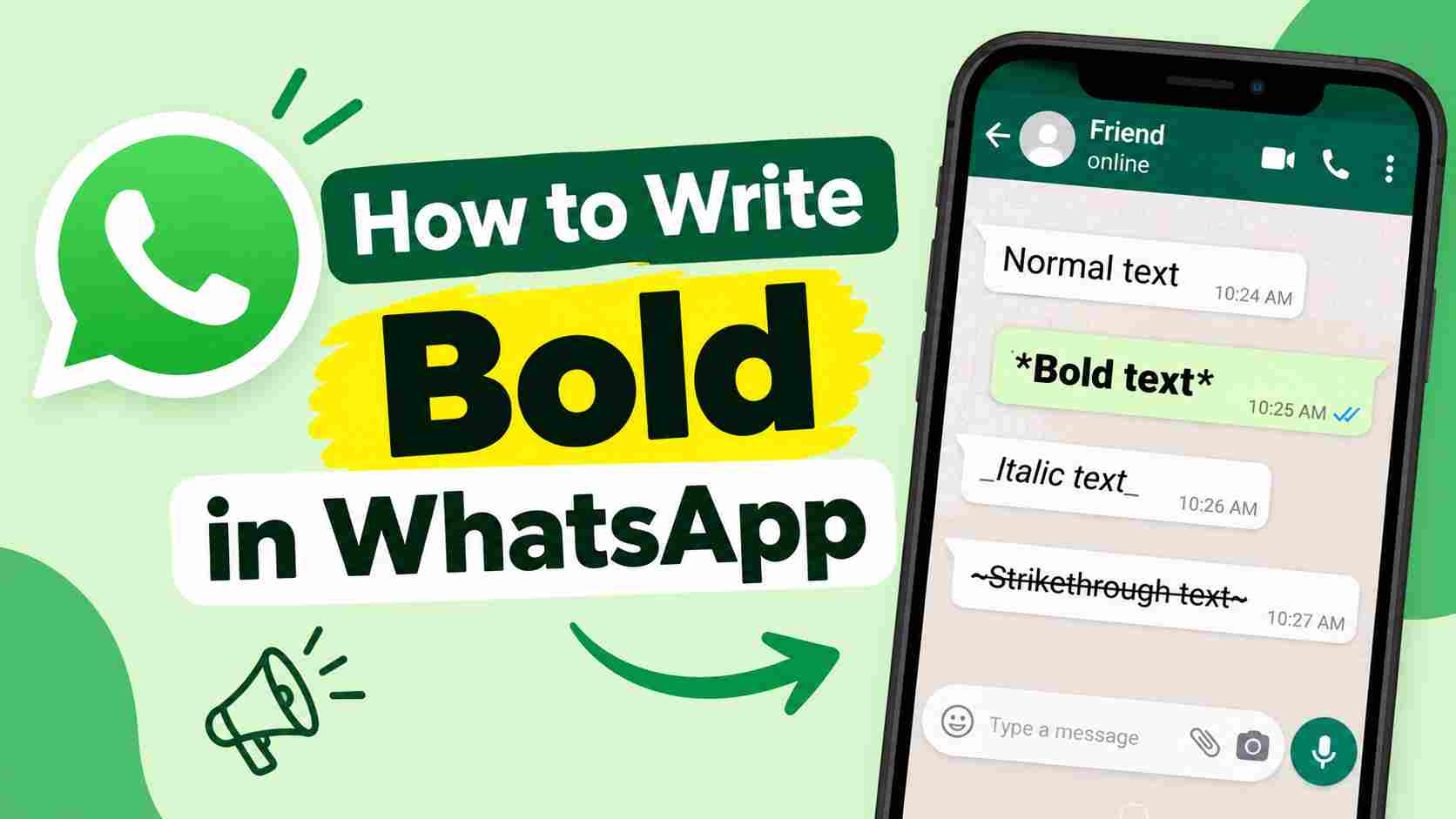
How to Write Bold in WhatsApp: Do you want to make your WhatsApp messages bold? WhatsApp allows you to change the text style while chatting with your friends, family, or other contacts. You do not need to install any extra app to use this feature. You can make a word, a sentence, or a full message bold by using a simple trick. In this article, we will explain how to write bold text in WhatsApp on Android, iPhone, and WhatsApp Web.
How to Write Bold in WhatsApp
- To write bold text in WhatsApp, you need to add an asterisk (*) before and after your text. This is the easiest way to make your message bold.
For example, if you want to write Hello in bold, type the following text:
*Hello*
When you send the message, WhatsApp will show it like this:
Hello
Remember that you should not leave a space between the asterisks and the text.
Steps to Write Bold Text in WhatsApp
- Follow these simple steps to make your WhatsApp messages bold.
Step 1: Open WhatsApp
- First, open WhatsApp on your Android phone or iPhone. Make sure that you are using a version of WhatsApp that supports text formatting.
Step 2: Open a Chat
- Open the chat of the person or group where you want to send a bold message.
Step 3: Type Your Message
- Tap on the message box and type the text that you want to make bold.
For example:
Hello, how are you?
Step 4: Add Asterisks
Now add one asterisk (*) at the beginning and another at the end of your message.
Type the message like this:
*Hello, how are you?*
Step 5: Send Your Message
After typing the text with asterisks, tap the Send button. WhatsApp will display the message in bold text.
Example:
*Hello, how are you?*
Result: Hello, how are you? (shown in bold)
How to Write Bold in WhatsApp Without Using Asterisks
You can also make text bold using the text formatting menu in supported versions of WhatsApp.
Follow these steps:
- Open WhatsApp and select a chat.
- Type the message that you want to send.
- Select the word or sentence you want to make bold, if your phone supports text selection formatting.
- Look for the formatting menu and select the Bold option, if available.
- Send your message.
The available options may be different depending on your phone and WhatsApp version. If you cannot find the Bold option, use the asterisk method explained above.
How to Write Bold in WhatsApp on Android
Android users can make WhatsApp messages bold without downloading any additional application.
Follow these steps:
- Open WhatsApp on your Android phone.
- Open any personal or group chat.
- Type your message inside the chat box.
- Add an asterisk before and after the text.
- Send the message to display it in bold.
Example:
*Important Notice*
Your message will appear as bold text after you send it.
How to Write Bold in WhatsApp on iPhone
The process is almost the same on an iPhone. You can use the asterisk method to format your messages.
- Open WhatsApp on your iPhone.
- Select the contact or group.
- Type your message in the chat box.
- Add an asterisk at the beginning and end of the text.
- Tap Send to share your bold message.
Example:
*Happy Birthday!*
The text will appear in bold when sent correctly.
How to Write Bold in WhatsApp Web
You can also write bold messages using WhatsApp Web on your computer.
- Open WhatsApp Web in your browser.
- Link your WhatsApp account if you have not already done so.
- Open the chat where you want to send a message.
- Type your text between two asterisks.
- Press Enter or click the Send button.
Example:
*Welcome to our group*
WhatsApp will format the message in bold.
WhatsApp Text Formatting Shortcuts
WhatsApp supports different text styles. You can use these shortcuts to change the appearance of your messages.
| Text Style | How to Type | Example Result |
|---|---|---|
| Bold | *Hello* | Hello |
| Italic | _Hello_ | Hello |
| Strikethrough | ~Hello~ | |
| Monospace | “`Hello“` | Hello |
These formatting styles can help you highlight important words and make your messages easier to read.
How to Make a Full WhatsApp Message Bold
If you want to make your full message bold, place an asterisk at the beginning and end of the complete text.
Example:
*Please join the meeting at 10 AM tomorrow.*
After sending the message, the complete sentence will appear in bold.
You can also make only one word bold inside a sentence.
Example:
Please submit your *document* today.
In this example, only the word document will appear in bold.
Common Problems When Writing Bold in WhatsApp
Sometimes, bold formatting may not work as expected. Here are some common reasons and their solutions.
| Problem | Solution |
|---|---|
| Asterisks appear in the message | Check that you have placed one asterisk at the beginning and one at the end of the text. |
| Text is not bold | Remove extra spaces between the asterisks and the text. |
| Bold option is missing | Use the asterisk method instead. |
| Formatting is not working | Update WhatsApp to the latest available version and try again. |
Frequently Asked Questions (FAQs)
1. How do I write bold in WhatsApp?
- To write bold in WhatsApp, put an asterisk (*) before and after your text. For example, type *Hello* and send the message.
2. Can I make only one word bold in WhatsApp?
- Yes, you can make only one word bold. Place the word between two asterisks inside your sentence.
3. How do I write bold in WhatsApp on Android?
- Open a chat, type your message between two asterisks, and send it. WhatsApp will display the text in bold.
4. How do I write bold in WhatsApp on iPhone?
- You can use the same asterisk method on your iPhone. Type an asterisk before and after your message.
5. Can I write bold text in WhatsApp Web?
- Yes, you can write bold text in WhatsApp Web by placing an asterisk before and after your message.
6. Do I need an extra app to make WhatsApp text bold?
- No, you do not need an extra app. WhatsApp has a built-in text formatting feature.
7. Can I make an entire WhatsApp message bold?
- Yes, place an asterisk at the beginning and end of the full message to make the entire message bold.